Getting started
In this page, we run the code with default training hyperparameters. At the end of the page, users should know what a normal training looks like, how to access training logs and how to obtain replays for the AI runs.
Setup
1. Download the map
The code is preconfigured to train on ESL-Hockolicious.
Download the map and place it at: %%documents%%/TrackMania/Tracks/Challenges/ESL-Hockolicious.Challenge.Gbx
Warning
Do NOT place maps in OneDrive or cloud storage folders. Cloud synchronization interferes with map loading.
2. Create virtual checkpoints (reference line)
Virtual checkpoints (VCP) provide dense progress tracking for the agent. You need a reference replay to generate them.
Option A: Use existing reference line
If a reference line already exists in maps/ folder (e.g., map5_0.5m_cl.npy), you can use it directly by configuring the map_cycle section in the config YAML.
Option B: Generate from replay
To create a new reference line:
Drive the track manually and save a replay (or download a reference replay)
Place replay in:
%%documents%%/TrackMania/Tracks/Replays/Convert replay to virtual checkpoints:
python scripts/tools/gbx_to_vcp.py "path/to/your/replay.Replay.Gbx"
This generates a .npy file in maps/ folder with virtual checkpoints spaced at distance_between_checkpoints (default 0.5m).
Update the
map_cyclesection in your config YAML (e.g.config_files/rl/config_default.yaml) to reference your new.npyfile
3. Verify configuration
These instructions assume that no modifications were made to the files since cloning the repository, except for the .env file (user-specific settings).
If needed, the repository can be restored to its original condition with:
git reset HEAD --hard
Start training
We are ready to start training.
python scripts/train.py --config config_files/rl/config_default.yaml
For PPO instead of IQN, pick a YAML under config_files/rl/: config_ppo.yaml (general), config_ppo_cnn_mlp.yaml (CNN + float MLP only), config_ppo_post_concat_cnn_tf.yaml (CNN + native fusion transformer), or config_ppo_transformer.yaml (post_concat + HF vision + HF fusion). See PPO configuration (ppo:) and Neural network YAML (nn) — full reference in Configuration Guide. To keep a pretrained vision trunk fixed while RL trains the rest, set flags under nn (RL parameter freeze in Configuration Guide).
Upon running this command, it is expected that a wall of text appears in your terminal. Don’t worry, this is normal.
A few seconds after running this command, two instances of the game will be launched in windowed mode.
Note
Window Management (Automatic):
Don’t minimize game windows - the game pauses when minimized
You can place other windows on top instead
Window focus is automatically managed by the code
Each window gets focus once per map load (no manual intervention needed)
With multiple instances, focus is intelligently coordinated
A few seconds after launching the game, the script will load the map automatically. There is no need for the user to interact with the game menu when launching the training script.
Reinforcement learning agents are trained by trial and error. It is expected that the agent tries random actions when it is untrained: these actions will improve gradually as the agent learns a better policy.
Tensorboard monitoring
Start the tensorboard local server to monitor training.
tensorboard --logdir=tensorboard --bind_all --samples_per_plugin "text=100000000, scalars=100000000"
The tensorboard interface can be accessed with a web browser at http://localhost:6006/.
The tab “Custom Scalars” at the top is preconfigured with a default layout. Graphs are plotted with number of interaction steps between the agent and the game on the X axis. The explanations below are intended for a general audience and may omit nuances that would stand out to a RL researcher.
Metric Organization: All metrics are organized into groups using prefixes (e.g., Training/, RL/, Gradients/, Race/, Performance/, Buffer/, Network/, IQN/). This makes it easier to navigate the many metrics in TensorBoard. You can filter metrics by group in the “SCALARS” tab or view pre-configured groups in “Custom Scalars”.
Key Metrics to Monitor: - Training/learning_rate: Should decay according to schedule - Gradients/norm_before_clip_max: Watch for gradient explosions (>100 indicates potential issues) - RL/avg_Q: Expected future reward (key indicator of learning progress) - Race/eval_race_time_robust: Best evaluation times (primary performance metric)
Early training
This part focuses on the initial training phase, during the first 3 to 5 million steps.
- We start by looking at the graph
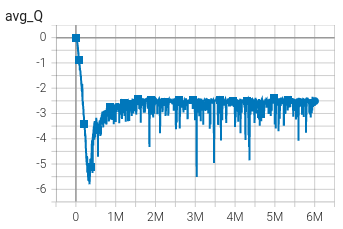
avg_Q, which represents the average reward the AI expects to receive. An untrained AI expects no reward: the graph starts near zero.
As training progresses, the AI correctly identifies that it doesn’t play properly: its prediction of future rewards is going down.
With time, the AI learns that “press forward and avoid walls” is a good strategy. Its estimation of future rewards starts to increase.
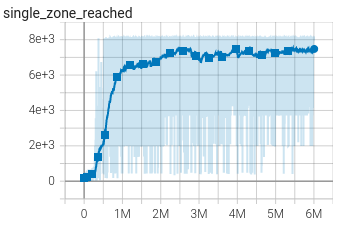
We also look at the single_zones_reached graph, which represents how far each run of the AI advances along the track.
It takes 300k steps for the agent to learn to press forward at the start
It takes 500k steps for the agent to finish the map for the first time
It takes 1M steps for the agent to regularly finish the map
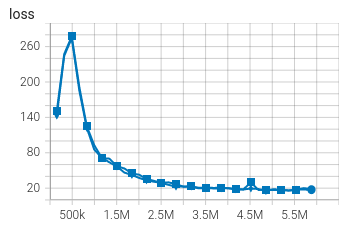
Focusing on the loss graph, the loss increases during the first 500k steps. This is a sign that the agent correctly identifies inconsistencies between its understanding of the environment and the transitions observed. Contrary to usual expectations in supervised learning, it is not a worrying sign to see the loss increase in reinforcement learning.
End of training
After relatively quick progress during the first 3-5M steps, the AI typically reaches a time in the low 54 seconds on ESL-Hockolicious. Progress now slows down, and can be monitored with the eval_race_time_robust graph.
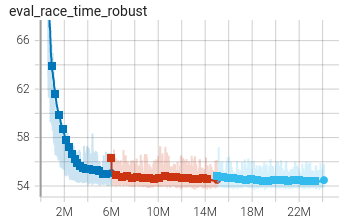
One may also monitor the explo_race_time_finished graph and notice the overall worse times and larger spread. This illustrates the difference between exploratory runs and evaluation runs. In exploration mode, the AI plays random actions with 3% chance: this is the mechanism that allows the agent to find improvements to its current policy. In evaluation mode, random actions are disabled to evaluate the agent’s current performance.
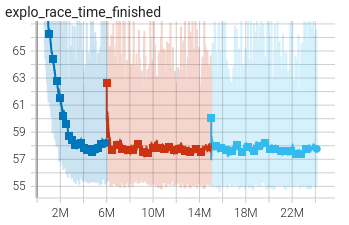
You may compare the result of your training with the authors’ included in the git repository under the name default_hocko_training.
Replay an AI run
During training, progress is regularly saved in files named save/{run_name}/best_runs/{map_name}_{time}/{map_name}_{time}.inputs.
To replay an AI run:
copy the file to
{mydocuments}/TMInterface/Scripts/open a game instance, load the map
open the in-game TMI console and type
load {map_name}_{time}.inputssave the corresponding replay